---
title: Configure the Labor Log (Sponsors)
description: d
---
[Skip to content](https://knowledge.kidkare.com/centers/configure-the-labor-log-sponsors#main-content)

- [Customer Portal](https://support.kidkare.com/_hcms/mem/login)
- [Access KidKare](https://app.kidkare.com/)
- [Support & Releases](https://knowledge.kidkare.com/support-releases)
- [Contact KidKare Support](https://knowledge.kidkare.com/support-releases/contact-our-support-team)
Open main navigation
Close main navigation
- [Customer Portal](https://support.kidkare.com/_hcms/mem/login)
- [Access KidKare](https://app.kidkare.com/)
- [Support & Releases](https://knowledge.kidkare.com/support-releases)
- [Contact KidKare Support](https://knowledge.kidkare.com/support-releases/contact-our-support-team)
Hello. How can we help you?
- There are no suggestions because the search field is empty.
1. [Centers and Center Sponsors](https://knowledge.kidkare.com/centers?hsLang=en)
2. [Sponsors of Centers](https://knowledge.kidkare.com/centers/sponsors-of-centers?hsLang=en)
3. [Center Management](https://knowledge.kidkare.com/centers/sponsors-of-centers?hsLang=en#center-management)
# Configure the Labor Log (Sponsors)
You must have the **Configure Labor Log Settings** permission to configure labor log activities.
### What is the Labor Log?
The KidKare Labor Log provides a space for center staff to document time spent on administrative and reimbursable tasks. If wage information is supplied for center staff, the log will automatically calculate reimbursable labor costs based on the total hours spent on CACFP Labor.
### Enable Labor Log Tracking in KidKare
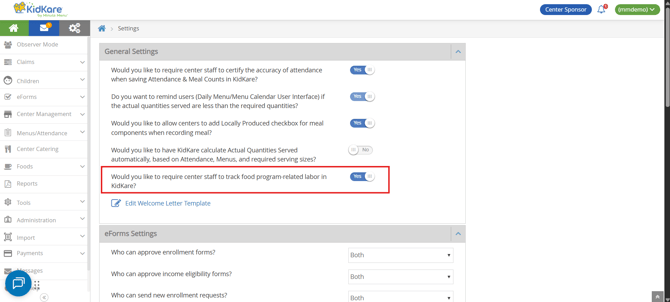
You can enable the Labor Log in Settings in KidKare.
1. Log in to KidKare.
2. Click  to access the Settings page.
3. Click  next to **Would you like to require center staff to track food program-related labor in KidKare?** Your change is saved automatically.
### Before You Begin
Watch the video for a quick walkthrough of sponsor set up tasks, then read on to complete set up.
1. Decide if you want to control labor log configuration and activity assignment, or if you'd like your centers to handle configuration and activity assignment.
2. Review center users and permissions and ensure there are roles created for each center. Activities are tied to user roles. If no roles are created, you can either create an assign them yourself, or you can reach out to the center to create and assign them.
1. **Sponsors:** See the **[Permissions](https://knowledge.kidkare.com/centers/permissions?hsLang=en)** article for more information.
2. **Centers:** Give your centers the [**User Permissions**](https://knowledge.kidkare.com/centers/user-permissions?hsLang=en) article for more information on permissions and roles.
3. If your centers do not already have roles created for their staff, **[create them now](https://knowledge.kidkare.com/centers/permissions?hsLang=en)** (or reach out to the centers to create them).
4. If you do not already have roles created for your staff, [**create them now**](https://knowledge.kidkare.com/centers/user-permissions?hsLang=en). If your sponsor manages user permissions and rules for your site, your sponsor may need to set these roles up for you.
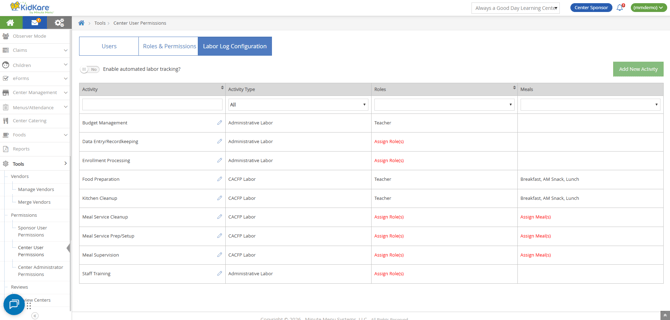
5. Review the default activities and determine if you will keep them, edit them, or remove them. The following activities have been provided as defaults:
- Food Preparation
- Meal Service Pre/Setup
- Meal Supervision
- Meal Service Cleanup
- Kitchen Cleanup
- Enrollment Processing
- Data Entry/Recordkeeping
- Budget Management
### Enter Labor Details for Users
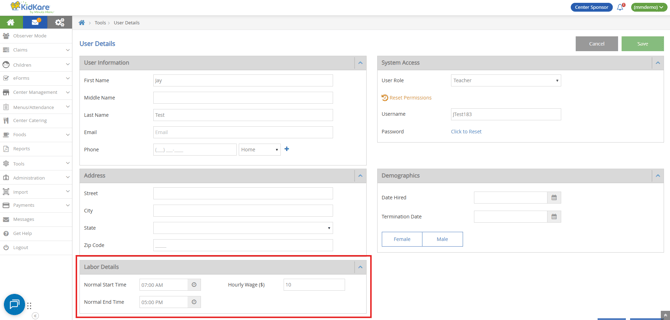
Enter your staff's normal working hours and hourly wages in their User profile.
You must have **View/Modify Center Staff** permissions and **View/Manage Labor Detail** permissions to update this information.
1. From the menu to the left, click **Administration** and select **User Permissions**.
2. Click the pencil icon next to the user to edit.
3. In the **Labor Details** section, complete the following:
- Normal Start Time
- Normal End Time
- Hourly Wage ($)
4. Click **Save**.
### Configure Activities
Once you have roles set up, create activities to which you can assign roles.
1. From the menu to the left, click **Administration** and select **User Permissions**.
2. Click the **Labor Log Configuration** tab.
3. To add new activities:
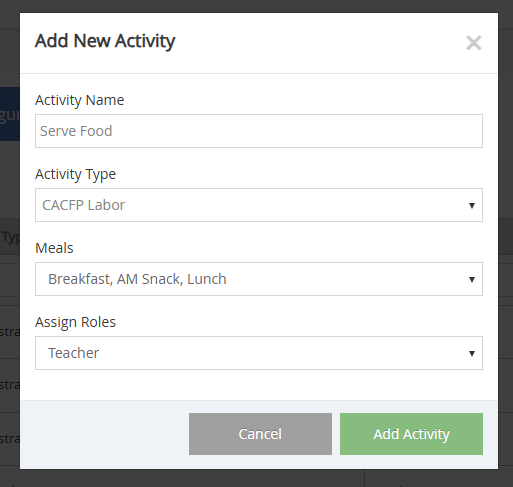
1. Click **Add New Activity**. A pop-up opens.
2. Enter the **Activity Name**.
3. Choose an **Activity Type**. You can choose from the following:
- **CACFP Labor:** These are tasks directly related to meal service activities, such as meal preparation, kitchen clean-up, meal service itself, and so on.
- **Administrative Labor:** These are non-reimbursable tasks you may need to complete for CACFP tasks, such as claims processing and enrollment management.
4. If you chose **CACFP Labor**, select the meal(s) for which this task is completed. Note that staff will have to select a specific meal served from the options you choose here.
5. Click the **Assign Roles** drop-down menu and select the role(s) to which to assign this activity. You may select as many roles as needed.
4. To edit existing activities:
1. Click the pencil icon next to an activity to edit it.
2. Make changes to the fields, as needed.
3. Click **Update Activity**.
5. To delete activities:
1. Click the pencil icon next to an activity.
2. Click **Delete Activity**.
3. At the **Are you sure** prompt,. click **Delete**.
**Note:** You may only delete activities that have not already been used in an employee's labor log. This is to ensure that historical records are maintained accurately.
- [Centers](https://knowledge.kidkare.com/centers/centers?hsLang=en#main-content)
- [Home Page & Settings](https://knowledge.kidkare.com/centers/centers?hsLang=en#home-page-settings)
- [Children](https://knowledge.kidkare.com/centers/centers?hsLang=en#children)
- [eForms](https://knowledge.kidkare.com/centers/centers?hsLang=en#eforms)
- [Menus/Attendance](https://knowledge.kidkare.com/centers/centers?hsLang=en#menus-attendance)
- [Calendar](https://knowledge.kidkare.com/centers/centers?hsLang=en#calendar)
- [Claims](https://knowledge.kidkare.com/centers/centers?hsLang=en#claims)
- [Expenses](https://knowledge.kidkare.com/centers/centers?hsLang=en#expenses)
- [Parachute](https://knowledge.kidkare.com/centers/centers?hsLang=en#parachute)
- [Reports](https://knowledge.kidkare.com/centers/centers?hsLang=en#reports)
- [Administration](https://knowledge.kidkare.com/centers/centers?hsLang=en#administration)
- [Import](https://knowledge.kidkare.com/centers/centers?hsLang=en#import)
- [Messages](https://knowledge.kidkare.com/centers/centers?hsLang=en#messages)
- [Guardian Portal](https://knowledge.kidkare.com/centers/centers?hsLang=en#guardian-portal)
- [At-Risk/SFSP Sites](https://knowledge.kidkare.com/centers/centers?hsLang=en#at-risk-sfsp-sites)
- [Sponsors of Centers](https://knowledge.kidkare.com/centers/sponsors-of-centers?hsLang=en#main-content)
- [Home Page & Settings](https://knowledge.kidkare.com/centers/sponsors-of-centers?hsLang=en#home-page-settings)
- [Observer Mode](https://knowledge.kidkare.com/centers/sponsors-of-centers?hsLang=en#observer-mode)
- [Claims](https://knowledge.kidkare.com/centers/sponsors-of-centers?hsLang=en#claims)
- [Children](https://knowledge.kidkare.com/centers/sponsors-of-centers?hsLang=en#children)
- [eForms](https://knowledge.kidkare.com/centers/sponsors-of-centers?hsLang=en#eforms)
- [Center Management](https://knowledge.kidkare.com/centers/sponsors-of-centers?hsLang=en#center-management)
- [Menus/Attendance](https://knowledge.kidkare.com/centers/sponsors-of-centers?hsLang=en#menus-attendance)
- [Foods](https://knowledge.kidkare.com/centers/sponsors-of-centers?hsLang=en#foods)
- [Reports](https://knowledge.kidkare.com/centers/sponsors-of-centers?hsLang=en#reports)
- [Tools](https://knowledge.kidkare.com/centers/sponsors-of-centers?hsLang=en#tools)
- [Administration](https://knowledge.kidkare.com/centers/sponsors-of-centers?hsLang=en#administration)
- [Import](https://knowledge.kidkare.com/centers/sponsors-of-centers?hsLang=en#import)
- [Payments](https://knowledge.kidkare.com/centers/sponsors-of-centers?hsLang=en#payments)
- [Messages](https://knowledge.kidkare.com/centers/sponsors-of-centers?hsLang=en#messages)
- [At-Risk & SFSP](https://knowledge.kidkare.com/centers/sponsors-of-centers?hsLang=en#at-risk-sfsp)
- [Minute Menu CX User Manual](https://knowledge.kidkare.com/centers/sponsors-of-centers?hsLang=en#minute-menu-cx-user-manual)
- [KidKare Academy for Sponsors](https://knowledge.kidkare.com/centers/sponsors-of-centers?hsLang=en#kidkare-academy-for-sponsors)
- [Beacon Verify](https://knowledge.kidkare.com/centers/sponsors-of-centers?hsLang=en#beacon-verify)
- [Get Help/Support](https://knowledge.kidkare.com/centers/get-help-support?hsLang=en)
Support Hours M-F 9am-5pm CST
Copyright © 2025, KidKare