---
title: Milk Audit for Centers
description: You must have the View Milk Audit permission enabled on your account to use the Milk Audit feature. If you are a sponsored center, your food program sponsor must enable this feature for you. Use the M
---
[Skip to content](https://knowledge.kidkare.com/centers/milk-audit-for-centers#main-content)

- [Customer Portal](https://support.kidkare.com/_hcms/mem/login)
- [Access KidKare](https://app.kidkare.com/)
- [Support & Releases](https://knowledge.kidkare.com/support-releases)
- [Contact KidKare Support](https://knowledge.kidkare.com/support-releases/contact-our-support-team)
Open main navigation
Close main navigation
- [Customer Portal](https://support.kidkare.com/_hcms/mem/login)
- [Access KidKare](https://app.kidkare.com/)
- [Support & Releases](https://knowledge.kidkare.com/support-releases)
- [Contact KidKare Support](https://knowledge.kidkare.com/support-releases/contact-our-support-team)
Hello. How can we help you?
- There are no suggestions because the search field is empty.
1. [Centers and Center Sponsors](https://knowledge.kidkare.com/centers?hsLang=en)
2. [Centers](https://knowledge.kidkare.com/centers/centers?hsLang=en)
3. [Claims](https://knowledge.kidkare.com/centers/centers?hsLang=en#claims)
# Milk Audit for Centers
Table of Contents
## In This Article
You must have the **View Milk Audit** permission enabled on your account to use the Milk Audit feature. If you are a sponsored center, your food program sponsor must enable this feature for you.
Use the Milk Audit to compare the amount of milk purchased with the amount of milk needed, based on menus and meal counts. It looks at data from other areas of KidKare, such as Attendance/Meal Counts, Menus, and Receipts. Carryovers and write offs are also considered.
Before using this function:
- Check with your sponsor to see if you should be using this feature
- Enter receipts.
- Record menus.
- Record meal counts.
**Note:** If your sponsor has not enabled expanded milk options, you Milk Audit will only include the following milk types: Whole, 1%/Skim, and Substitute.
### View the Milk Audit
1. From the menu to the left, click **Claims**.
2. Click **Milk Audit**. The Milk Audit page opens.
3. Click the **Month** box and select the claim month to view.
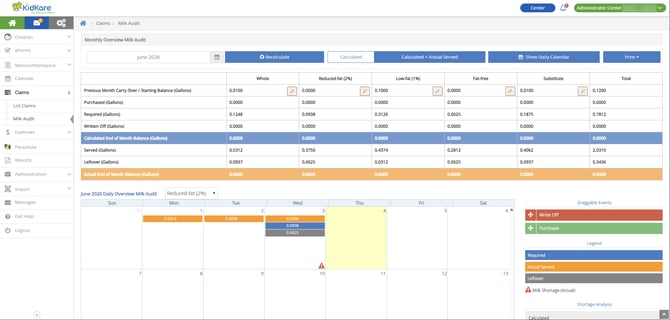
4. Click **Recalculate** if you need to recalculate carryover amounts from the prior month. This may be necessary if you added or edited purchased quantities or actual quantities served in the prior month.
5. Select **Calculated** to view milk audit information based on calculated quantities (attendance x required quantities), or select **Calculated + Actual Served** to view milk audit information based on calculated and actual served quantities.
**Note:** This option may not display according to your settings. If this is the case, the numbers you are viewing are the Calculated numbers. See [**Manage Allergies**](https://knowledge.kidkare.com/centers/manage-allergies-conditions?hsLang=en) to learn more about how to set this up.
6. The following information displays in the table for the selected month:
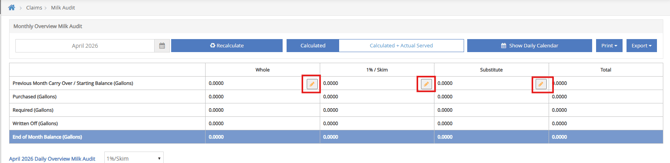
- **Previous Month Carry Over/Starting Balance:** This may be the ending balance from the previous month (depending on your specific policy settings). To edit starting balances, click , enter the new amount, and click . Note that this option may not be available according to your preferences or the preferences your food program sponsor set.
- **Purchased:** This is the amount of milk purchased, based on receipt date.
- **Required:** This is the amount of milk required based on menus and meal counts.
- **Written Off:** This is the amount of milk written off for the month. For example, this number accounts for cases in which the milk was spilled, spoiled, and so on.
- **End of Month Balance:** This is the amount of milk leftover at the end of the month.
- **Actual Served:** This is the actual total of milk served during the selected month based on meal records. This row only displays if you select **Calculated + Actual** in **Step 5**.
- **Actual End of Month Balance:** This is the actual end of month balance based on the following formula: Carry Over + Purchased - Written Off - Actual Served. This row only displays if you select **Calculated + Actual** in **Step 5**.
7. Click **Print** and choose a report to print. You can choose **Summary Report** or **Detailed Report**. Both reports download as PDFs.
Any milk served to a child marked with a milk allergy as **Parent Provided** does not show up on the Milk Audit. The Milk Audit only shows substitute milk that the center purchases and supplies.
---
### Use the Daily Calendar
Use the Daily Calendar to view and/or add milk events, such as purchases or write offs.
1. Click **Show Daily Calendar**. The Daily Calendar displays at the bottom of the window. The Calculated version is shown in the figure below.
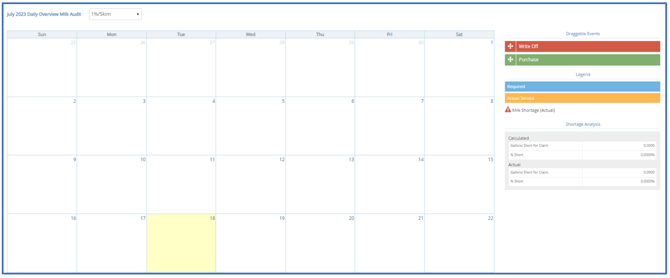
2. Click the drop-down menu and select the milk type. You can choose from the following: Whole, Reduced-fat (2%), Low-fat (1%), Fat-free (Skim), or Substitute.
3. To add a write off:
1. In the **Draggable Events** section, click the **Write Off** event and drag it to the calendar.
2. Drop it on the day on which to apply it. The Milk Write Off pop-up opens.
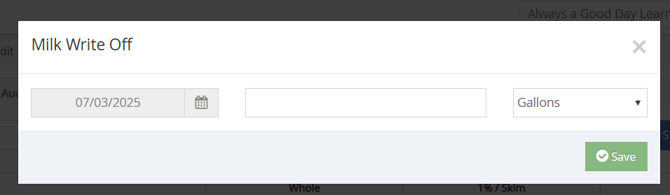
**Notes:** A day can only have one write off event at a time. You cannot change the date in the Milk Write Off pop-up. If you are a sponsored center, your food program sponsor must enable this feature.
3. Click the text box and enter the amount of milk you are writing off.
4. Click the corresponding drop-down menu and select **Gallons**, **Pints**, or **Quarts**. All units of measure are converted to gallons once you save.
5. Click **Save**.
4. To add a purchase:
1. In the **Draggable Events** section, click the **Purchase** event and drag it to the calendar.
**Note:** You must have the **Vendor/Receipts** permission enabled on your account to access and work with Purchase events. If you are a sponsored center, your food program sponsor must enable this feature.
2. Drop it on the day on which to apply it. The Add Expenses pop-up opens.
1. 1. Select **Quick Entry** or **Itemized Entry**.
2. Enter your milk quantities. For instructions, see **[Expenses](https://knowledge.kidkare.com/centers/centers?hsLang=en#expenses).**
3. Click **Save**.
2. To edit an event:
1. Click the event to edit. A pop-up opens.
2. Enter new information over the existing information. Note that you cannot change the event date.
3. Click **Save**.
3. To remove an event:
1. Click the **X** in the right corner of the event banner.
2. Respond to the confirmation prompt.
---
### Additional Calendar Items
The following items also display on the calendar:
- **Required:** Required amounts display for each day where a calculated or calculated + actual calculation is present. You cannot add, move, or remove these markers.
-  **Milk Shortage (Calculated):** This icon displays on each day for which the daily ending balance value is calculated to be negative. Click this icon to view the anticipated shortage amount.

-  **Milk Shortage (Actual):** This icon displays on each day for which the daily ending balance based on the calculated values is negative. Click this icon to view the actual shortage amount.
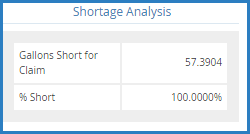
- **Shortage Analysis:** This section displays the calculated total amount of gallons you are short by day or by claim. This is determined by how your system is set up. For sponsored centers, your food program sponsor makes this distinction. If you selected Calculated + Actual at the top of the page, the actual shortages display as well.
- [Centers](https://knowledge.kidkare.com/centers/centers?hsLang=en#main-content)
- [Home Page & Settings](https://knowledge.kidkare.com/centers/centers?hsLang=en#home-page-settings)
- [Children](https://knowledge.kidkare.com/centers/centers?hsLang=en#children)
- [eForms](https://knowledge.kidkare.com/centers/centers?hsLang=en#eforms)
- [Menus/Attendance](https://knowledge.kidkare.com/centers/centers?hsLang=en#menus-attendance)
- [Calendar](https://knowledge.kidkare.com/centers/centers?hsLang=en#calendar)
- [Claims](https://knowledge.kidkare.com/centers/centers?hsLang=en#claims)
- [Expenses](https://knowledge.kidkare.com/centers/centers?hsLang=en#expenses)
- [Parachute](https://knowledge.kidkare.com/centers/centers?hsLang=en#parachute)
- [Reports](https://knowledge.kidkare.com/centers/centers?hsLang=en#reports)
- [Administration](https://knowledge.kidkare.com/centers/centers?hsLang=en#administration)
- [Import](https://knowledge.kidkare.com/centers/centers?hsLang=en#import)
- [Messages](https://knowledge.kidkare.com/centers/centers?hsLang=en#messages)
- [Guardian Portal](https://knowledge.kidkare.com/centers/centers?hsLang=en#guardian-portal)
- [At-Risk/SFSP Sites](https://knowledge.kidkare.com/centers/centers?hsLang=en#at-risk-sfsp-sites)
- [Sponsors of Centers](https://knowledge.kidkare.com/centers/sponsors-of-centers?hsLang=en#main-content)
- [Home Page & Settings](https://knowledge.kidkare.com/centers/sponsors-of-centers?hsLang=en#home-page-settings)
- [Observer Mode](https://knowledge.kidkare.com/centers/sponsors-of-centers?hsLang=en#observer-mode)
- [Claims](https://knowledge.kidkare.com/centers/sponsors-of-centers?hsLang=en#claims)
- [Children](https://knowledge.kidkare.com/centers/sponsors-of-centers?hsLang=en#children)
- [eForms](https://knowledge.kidkare.com/centers/sponsors-of-centers?hsLang=en#eforms)
- [Center Management](https://knowledge.kidkare.com/centers/sponsors-of-centers?hsLang=en#center-management)
- [Menus/Attendance](https://knowledge.kidkare.com/centers/sponsors-of-centers?hsLang=en#menus-attendance)
- [Foods](https://knowledge.kidkare.com/centers/sponsors-of-centers?hsLang=en#foods)
- [Reports](https://knowledge.kidkare.com/centers/sponsors-of-centers?hsLang=en#reports)
- [Tools](https://knowledge.kidkare.com/centers/sponsors-of-centers?hsLang=en#tools)
- [Administration](https://knowledge.kidkare.com/centers/sponsors-of-centers?hsLang=en#administration)
- [Import](https://knowledge.kidkare.com/centers/sponsors-of-centers?hsLang=en#import)
- [Payments](https://knowledge.kidkare.com/centers/sponsors-of-centers?hsLang=en#payments)
- [Messages](https://knowledge.kidkare.com/centers/sponsors-of-centers?hsLang=en#messages)
- [At-Risk & SFSP](https://knowledge.kidkare.com/centers/sponsors-of-centers?hsLang=en#at-risk-sfsp)
- [Minute Menu CX User Manual](https://knowledge.kidkare.com/centers/sponsors-of-centers?hsLang=en#minute-menu-cx-user-manual)
- [KidKare Academy for Sponsors](https://knowledge.kidkare.com/centers/sponsors-of-centers?hsLang=en#kidkare-academy-for-sponsors)
- [Beacon Verify](https://knowledge.kidkare.com/centers/sponsors-of-centers?hsLang=en#beacon-verify)
- [Get Help/Support](https://knowledge.kidkare.com/centers/get-help-support?hsLang=en)
Support Hours M-F 9am-5pm CST
Copyright © 2025, KidKare