
If you sponsor centers who still send in paper attendance and meal counts, you may, at times, notice children written in attendance for whom you don't have complete information. These are No Form or "No App" children. You can enroll these children in KidKare using a light enrollment form so they are tracked in rosters and can easily be activated when you receive their enrollment and income eligibility forms.
No Form children:
- Stay at a new status called Pending (No Form).
- Are excluded from claims entirely until activated.
- Cannot be activated until all required CACFP information is provided.
You can record attendance and meal counts for this children, which are then added to claims as adjustments upon activation.
Note: Only sponsor users can add and manage No Form children. Center users do not see them.
Getting Started
The No Form Children feature is controlled by sponsor policy D.34 Allow Minimal Enrollment for No Form Children. If you are a multi-state sponsor, this policy cannot be set per-state. It will be enabled for all states you service.
To enable it:
-
From the menu to the left, click Administration.
-
Choose Manage Policies.
-
Go to section D, and expand D.34.
-
Set D.34 to Y.
-
Click Save.
- Log out of KidKare and log back in to see the updated policy.
Enroll a No Form Child
You enroll No Form children on a dedicated enrollment page.
-
Select the center from the drop-down menu at the top of the page, if needed.
-
From the menu to the left, click Children.
-
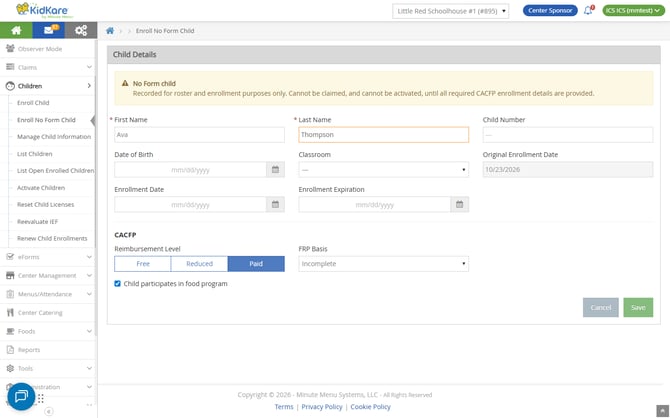
Select Enroll No Form Child. The enrollment form opens.
-
Enter the child's First Name and Last Name. These are the only fields that are required.
-
Enter any other details you have, if applicable. The Date of Birth, Child Number, Classroom, Enrollment Date and Enrollment Expiration fields are optional.
Note that Reimbursement Level defaults to Paid with a basis of Incomplete, because this child does not have income eligibility information available. -
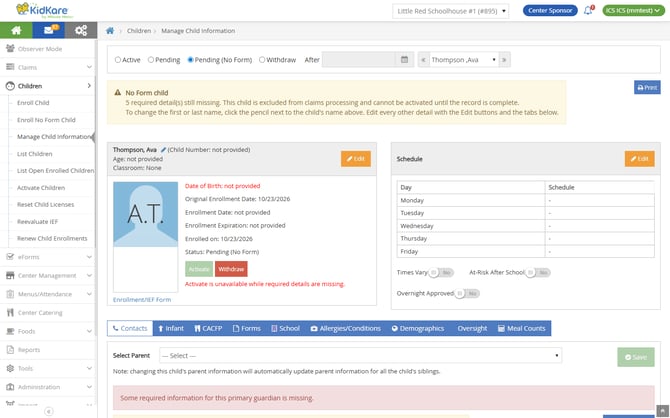
Click Save. The child's record opens in Manage Child Information.
Duplicate No Form Children
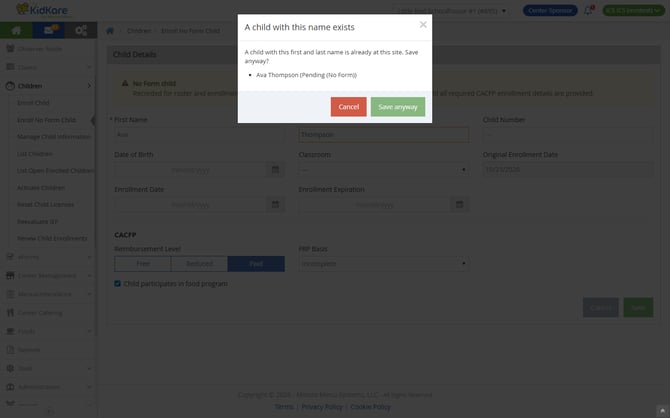
If a child under the same first and last name is already enrolled at the center, you will see a confirmation prompt.
- Click Cancel to go back and make changes.
- Click Save Anyway to continue adding the child.
IMPORTANT: You cannot add a No Form child whose name and date of birth match an existing child.
Correcting No Form Child Names
If you need to update a No Form child's name without fully updating and activating them, you can do so in-line.
- Click
 next to the child's name.
 - Make changes.
- Click Save.
Finding No Form Children Later
No Form children have a dedicated status: Pending (No Form). This allows you to filter child screens accordingly. There are also dedicated reports that include these children, so you can keep track of them over time. Here's how you can access these child records:
- List Children: Filter List Children by Pending (No Form) status.
- Manage Child Information: Choose the Pending (No Form) status when you access the page.
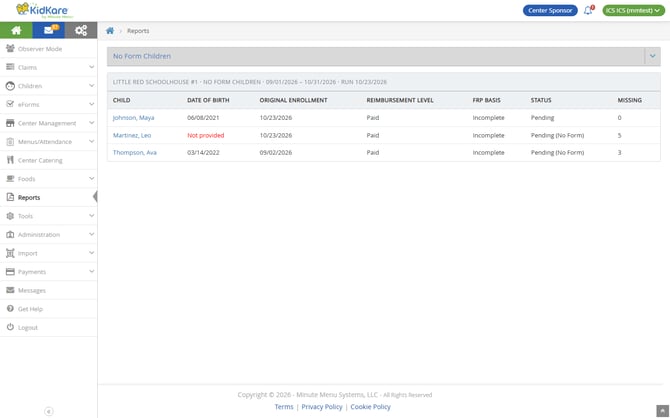
- No Form Children report: Go to Reports, choose Children, and select No Form Children. Set a date range, and click Go. You can then click the link in the Child column to go directly to that No Form child's record.
Record Meals & Attendance for No Form Children
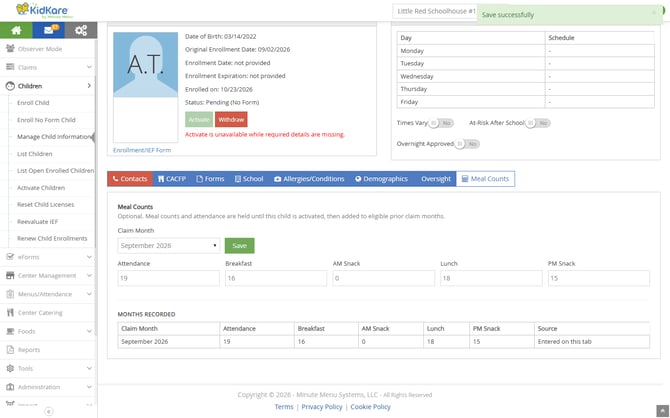
You can record meals for a No Form child by month on the child's Meal Counts tab, or day by day on the Center Daily Attendance & Meal Counts page. Meals recorded for a No Form child are never claimed while the child is No Form. They are added to earlier claims when the child is activated.
Enter Monthly Attendance & Meal Counts
-
From the menu to the left, click Children.
-
Select Manage Child Information.
-
Select Pending (No Form), then select the child from the drop-down menu.
-
Click the Meal Counts tab.
-
Click the Claim Month drop-down menu and select the month.
-
Enter Attendance. Attendance must be a whole number, cannot be less than the highest meal count, and cannot be more than the days in the selected month.
-
Enter meal counts for each meal.
-
Click Save. The month appears under Months Recorded.
Record Daily Attendance
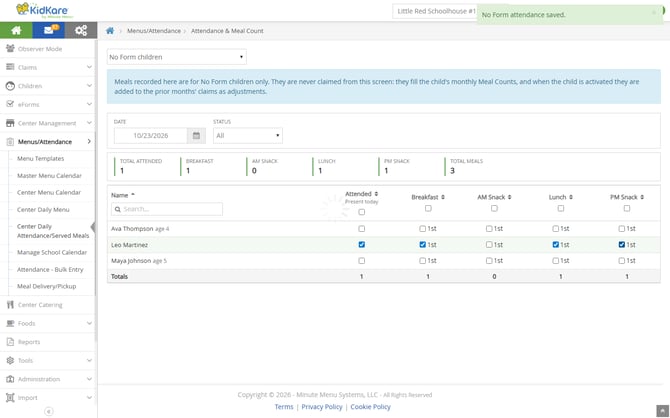
You can record daily attendance and meal counts for No Form children using a simplified entry screen.
Note: If you previously recorded monthly counts in the Meal Counts tab, recording attendance here for the same claim month:
- Overwrites the monthly counts you entered.
- Locks the Meal Counts tab from being updated.
To record daily attendance:
-
From the menu to the left, click Menus/Attendance.
-
Select Center Daily Attendance/Served Meals.
-
Click the drop-down menu at the top of the page and select No Form children.
-
Select the date.
-
Check the Attended box and the box for each meal served for each child. Each change saves automatically, and the message No Form attendance saved. appears.
- If you already entered monthly meal counts in the Meal Counts tab on the child record, the first daily record for that same claim month can overwrite what you entered. Instead of an automated save, you are prompted to confirm the changes.
A comparison displays the differences between the daily attendance and what is recorded on the Meal Counts tab. You can choose to Cancel and keep the monthly counts, or you can click Save and Recalculate Anyway to update the Meal Counts tab. This will prevent you from updating the Meal Counts tab going forward.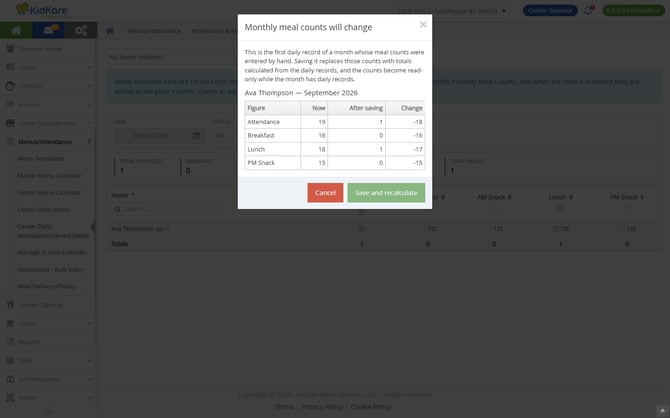
Complete a No Form Child's Record
The banner at the top of the child's record shows how many required details are still missing. Details that have not been entered show as not provided. The missing details counter updates as you make changes.
Once the record is completed and the child moves out of Pending (No Form) status, you can record attendance and meal counts for them as you normally would.
To complete the child record:
- Access the child's record from List Children, Manage Child Information, or the No Form Children Report.
- Click Edit in the Child Details section and complete the information there.
- Move through the remaining tabs and sections of the child screen as you normally would. See Enroll Participants for more information.
When you save the last missing detail, the child's status changes to Pending, and a green Record complete message displays.
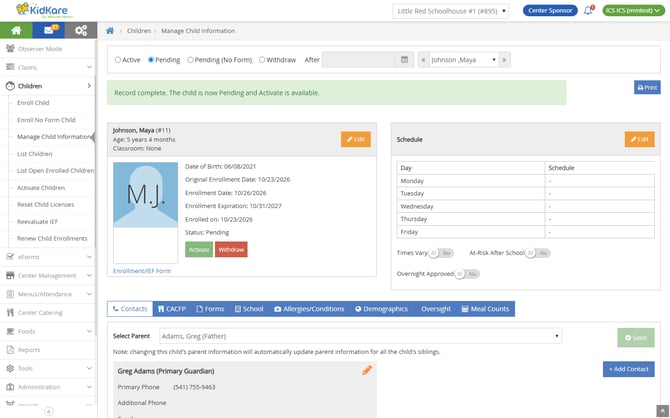
Note: If your policies are configured to automatically activate children with current/past enrollment dates, the child will automatically be activated once you add the last missing detail. This will also add any recorded meal counts and attendance to the relevant claims.
Activate a Child Who was No Form
You can only activate a child who was previously No Form by going directly to their child record in Manage Child Information. They do not appear in Activate Children, Renew Child Enrollments, or eForms Approve & Renew, and center users cannot activate them.
IMPORTANT! Activating a No Form child with attendance and/or meal counts recorded adds adjustments to relevant claims. Ensure you have completed claims processing before taking this step, as re-processing a claim removes all claim adjustments.
To activate a No Form child:
-
Open the child's record in Manage Child Information.
-
Click Activate. The Activate window names the claim month(s) to which the child's recorded meals will be added. A month with no meals recorded is named as an adjustment with no meals, to be completed in Adjust Claim Counts.
-
Click Yes to activate the child, or click No to cancel.
Claims Adjustments for No Form Children
When you activate a child who was previously No Form, claims for which they have recorded attendance and meal counts are automatically adjusted. A claim must already be processed for these adjustments to appear.
What KidKare Checks before Adding Meals
KidKare checks for the following before adding the adjustment:
- Approved meals: Only meal types the center's license is approved to serve are added. Any other meals are listed as Not added under the month on the Meal Counts tab.
- Regular license: The center's license must be a Regular CACFP license of the center. At-Risk and SFSP months are not adjusted.
- Participation: If the child does not participate in the food program, the month is not adjusted.
- Meal schedule: If Enrolled Meal Edit Check is set to Disallow, meals the child is not scheduled for are left out.
- Emergency Shelter: On an Emergency Shelter license, the participation and meal schedule checks are skipped, as they are on a regular claim.
- Days claimed: The child's attended days cannot be more than the claim's Days Claimed. If they are, the month is not added, and the Meal Counts tab names the figure to correct.
- Claim warnings: KidKare runs the same checks as Adjust Claim Counts. At activation, a month that gives a warning is not added. To add it, click Adjust on the Meal Counts tab, review the warning, and click Save anyway.
- Daily meal limit: The Meal Counts tab does not accept monthly counts above three meals and snacks for each attended day, and it names any day in the daily records with more than three.
IMPORTANT! Since counts are added as claim adjustments, other claim edit checks do not run on these meals. These include checks on age, enrolled days of the week, menus and food components, capacity, and in and out times. Review the child's meal counts before you activate the child.
Which Claim Months are Adjusted
- A month is adjusted only when it has a processed claim for the child's Regular CACFP license, and only until its 60-day deadline.
- KidKare looks at up to two claim months before the activation month and at the activation month itself.
- Only days from the child's Original Enrollment Date through the day the record was completed count. A month between the day the record was completed and the day the child was activated has no No Form days, so it is adjusted with no meals.
- If a month has daily records on the attendance screen, KidKare uses those. Otherwise it uses the counts entered on the Meal Counts tab.
- Adjustments are made only the first time the child is activated. If the child is later made Pending or Withdrawn and then activated again, no new adjustment is made. Use Adjust on the Meal Counts tab for any month that is still open.
How the Adjustment is Added to the Claim
- KidKare adds the child's meals, attendance and participation to the center's claim for the month as an adjustment. This is the same kind of change you would save in Adjust Claim Counts. Days Claimed does not change.
- If the claim uses actual Free, Reduced and Paid counts, the meals are added under the child's Reimbursement Level on the day the child was activated. If the claim uses blended percentages, the meals are split by the claim's percentages.
- The child counts once under Participating for each month. If the claim already counts the child (for example, from attendance recorded after the record was complete), the child is not counted again.
- The change appears in the claim's Claim Change Log with the reason [child's name] reason: No Form child Activated.
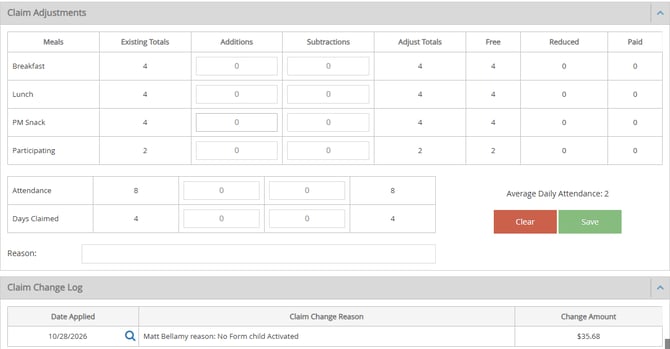
Note: If you re-process the claim after the adjustment is added, the row for that month in the Child's Meal Counts tab will show Removed from the claim. Click Adjust to add it again.
Manually Add Claims Adjustments for No Form Children
Use Adjust for a month that was not claimed yet when the child was activated, a month that could not be added, or a month that was removed from the claim.
-
From the menu to the left, click Children.
-
Select Manage Child Information.
-
Select Pending (No Form), then select the child from the drop-down menu.
-
Click the Meal Counts tab. Under Months Recorded, the Adjustment column shows each month's state. If a month has adjustments to apply, you'll see a green Adjust button.
- Click Adjust for the month to add.
- Respond to the confirmation prompt. The Adjustment column will update to show you added the counts on today's date.
No Form Children Reports
There are three reports available in the Children reports category to help you track No Form children and any claim adjustments created for them. Each report displays on-screen. You can print them by typing Ctrl + P on your keyboard.
- No Form Children: Lists every child who was No Form at any point in the period you select, including children whose records are now complete.
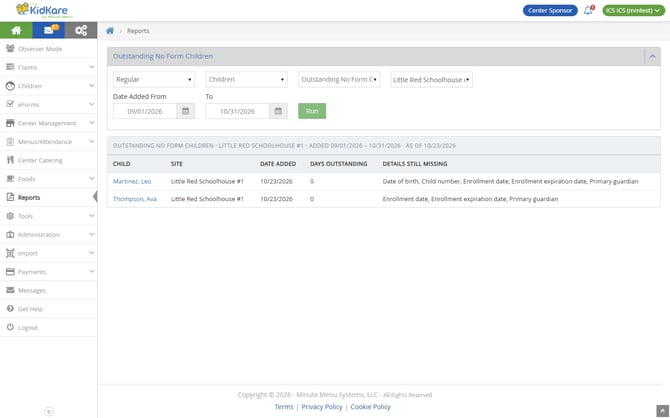
- Outstanding No Form Children: Lists children who are still Pending (No Form), with the date each was added, the days outstanding and the details still missing. The child who has been outstanding longest is listed first.
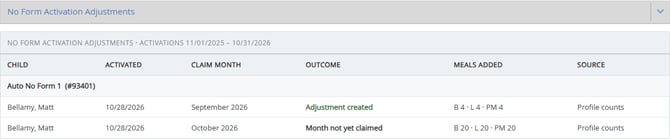
- No Form Activation Adjustments: Lists the meals added to claims when children who were No Form were activated. It lists one row for each child and claim month, with the Outcome, the Meals Added and the Source of the meals (Daily attendance, Profile counts or None).
Run the No Form Children Report
- From the menu to the left, click Reports.
- Click the category drop-down menu and select Children.
- Click the report drop-down menu and select No Form Children.
- Select a center or All Active Centers.
- Select Claim Month or Date Range and enter the period. A date range can be up to 12 months. Note that children are pulled into this report by their Original Enrollment Date.
For example, if Jane Doe has an enrollment date of 10/28/2026, but you have meal counts recorded for her in September 2026, she will only appear in this report if you've selected the October 2026 claim month or a date range that includes 10/28/2026. - Check the Still No Form only box to list only children who are still Pending (No Form), if needed.
- Click Run.
- Click the link in the Child column to go directly to that child's record.
Run the Outstanding No Form Children Report
- From the menu to the left, click Reports.
- Click the category drop-down menu and select Children.
- Click the report drop-down menu and select No Form Children.
- Select a center or All Active Centers.
- Enter the Date Added From and To dates. The range can be up to 12 months.
- Click Run.
Run the No Form Activation Adjustment Report
- From the menu to the left, click Reports.
- Click the category drop-down menu and select Children.
- Click the report drop-down menu and select No Form Activation Adjustments.
- Select a center or All Active Centers.
- Select Claim Month or Date Range and enter the period. A date range can be up to 12 months. This report looks at the Activation Date.
- Click Run.
Understanding the Outcome Column
The Outcome column shows one of the following:
- Adjustment created: the meals were added to the claim.
- Adjustment created · needs counts: the month was adjusted, but no meals were recorded for it.
- Month not yet claimed: the claim has not been processed. Use Adjust on the child's Meal Counts tab once it is.
- Could not be created: the reason prints under the outcome.
- Past the 60-day deadline or Outside the two-month limit: the month cannot be adjusted.
- Adjustment created — removed from the claim: the adjustment was added, then removed when the claim was processed again. Use Adjust on the child's Meal Counts tab to add it again.