---
title: Send & View Messages
description: KidKare's messaging feature allows you to send messages to guardians of participants enrolled in your center. If you are a sponsored center, you can also send messages directly to your sponsor (if the
---
[Skip to content](https://knowledge.kidkare.com/centers/send-view-messages#main-content)

- [Customer Portal](https://support.kidkare.com/_hcms/mem/login)
- [Access KidKare](https://app.kidkare.com/)
- [Support & Releases](https://knowledge.kidkare.com/support-releases)
- [Contact KidKare Support](https://knowledge.kidkare.com/support-releases/contact-our-support-team)
Open main navigation
Close main navigation
- [Customer Portal](https://support.kidkare.com/_hcms/mem/login)
- [Access KidKare](https://app.kidkare.com/)
- [Support & Releases](https://knowledge.kidkare.com/support-releases)
- [Contact KidKare Support](https://knowledge.kidkare.com/support-releases/contact-our-support-team)
Hello. How can we help you?
- There are no suggestions because the search field is empty.
1. [Centers and Center Sponsors](https://knowledge.kidkare.com/centers?hsLang=en)
2. [Centers](https://knowledge.kidkare.com/centers/centers?hsLang=en)
3. [Messages](https://knowledge.kidkare.com/centers/centers?hsLang=en#messages)
# Send & View Messages
Table of Contents
## In This Article
### Send Messages
KidKare's messaging feature allows you to send messages to guardians of participants enrolled in your center. If you are a sponsored center, you can also send messages directly to your sponsor (if they allow it). You can message guardians individually, in small groups, or you can send one message to all parents for active participants at the same time. When messaging guardians, you also have the option to attach planned menus and include a survey to which guardians can respond. These surveys can be used to plan attendance, screen for COVID-19 symptoms, or gather any other information you need from parents.
To send messages:
1. Click . The Messages page opens.
2. Click **Send Message**. The Message Editor opens.
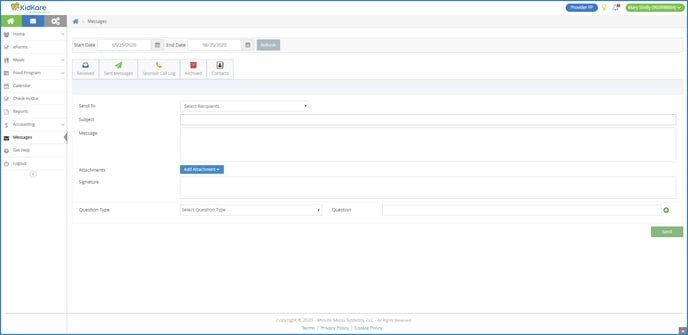
3. Click the **Send To** drop-down menu and select the people you are messaging:
- To send a message to your sponsor, select **Sponsor**.
- To send a message to one or more guardians, click each guardian name to include in the message. You can use the **Search** box in this menu to search for specific contacts.
- To message all guardians, select **Guardians for All Active Participants**.
4. Click the **Subject** box and enter a subject for your message.
5. Click the **Message** box and enter your message content.
6. To attach a menu:
1. Click **Add Attachment** and select **Menu**. The Attach Menu pop-up opens.
1. Click the **Menu Type** drop-down menu and select **Monthly**, **Weekly**, or **Custom**.
2. Select the date for which to send the month. The available options vary according to the menu type you selected.
- **Monthly:** Click the **Select Month** box and select the month for which to send menus.
- **Weekly:** Click the **Select Day** box and select a day in the week to send. Menus for dates in the same week are attached.
- **Custom:** Click the **From** box and enter the first date in the range to send. Then, click the **To** box and enter the last date of the range to send.
3. Click **Attach**. The Scheduled Menus report for the month or the week is attached to the message.
7. Click **Add Attachment** and select **File** to add any additional attachments to this message. For example, you could attach a PDF newsletter.
8. Click the **Signature** box and enter your email signature. If you are messaging your sponsor, go to **Step 10**.
9. To add a survey:
1. Click the **Question Type** drop-down menu and select the question type to include on the survey. You can choose from the following:
- **Single Select:** The guardian can select one answer only.
- **Multi-Select:** The guardian can select multiple answers.
- **Date:** The guardian must select a date.
- **Text:** The guardian can type any answer.
2. Click the **Question** box and enter the question. If you selected **Date** or **Text**, go to **Step 9d**.
3. Click the **Choices** box and enter the responses from which the guardian can choose. Press **Enter** or **Tab** between choices. To remove a choice, click **X** or press **Backspace**.

4. Click  to add a new question to your survey. Repeat **Steps 9a - 9c** to add as many questions, as needed.
5. Click  to remove questions from your survey.
10. When finished, click **Send**.
---
### View Sent Messages
You can view messages you have sent in the Sent Messages tab. Like the Received tab, the Sent Messages tab is divided into the following columns: Sent To, Subject, Reports, and Date. The total number of messages and unread reports display at the bottom of the table.
1. Click . The Messages page opens.
2. Click the **Sent Messages** tab.
3. To mark sent messages as read/unread:
1. Check the box next to the message(s). Check the box at the top of the column to select all messages.
2. Click **Mark as Read** or **Mark as Unread**.
4. To archive messages:
1. Check the box next to the message(s) to archive. Check the box at the top of the column to select all messages.
2. Click **Archive Selected**. The messages are moved to the Archived tab.
5. To view message reports, click the link in the **Reports** column.
You can also send messages from this tab. Click Send Message and select the recipients.
---
### View Received Messages
Received messages display in the Received tab on the Messages page. It is divided into the following columns: Received From, Subject, and Date. You can also see the total number of messages, as well as the number that are unread, at the bottom of this page.
1. Click . The Messages page opens and displays the Received tab by default.
2. Use the **Search Messages** box to filter the messages that display. The message list is updated as you type.
3. Click a message to view the message content.
4. If the sender attached a file, click the file in the Attachments section to view and download it.
5. When finished, click **Back** to return to the Received tab.
6. To mark messages as read/unread:
1. Check the box next to the messages to mark as read/unread. You can also check the box at the top of the column to select all messages.
2. Click **Mark as Read** or **Mark as Unread**.
7. To archive messages:
1. Check the box next to the messages to archive. You can also check the box at the top of the column to select all messages.
2. Click **Archive Selected**. The messages you selected are moved to the Archived tab.
- [Centers](https://knowledge.kidkare.com/centers/centers?hsLang=en#main-content)
- [Home Page & Settings](https://knowledge.kidkare.com/centers/centers?hsLang=en#home-page-settings)
- [Children](https://knowledge.kidkare.com/centers/centers?hsLang=en#children)
- [eForms](https://knowledge.kidkare.com/centers/centers?hsLang=en#eforms)
- [Menus/Attendance](https://knowledge.kidkare.com/centers/centers?hsLang=en#menus-attendance)
- [Calendar](https://knowledge.kidkare.com/centers/centers?hsLang=en#calendar)
- [Claims](https://knowledge.kidkare.com/centers/centers?hsLang=en#claims)
- [Expenses](https://knowledge.kidkare.com/centers/centers?hsLang=en#expenses)
- [Parachute](https://knowledge.kidkare.com/centers/centers?hsLang=en#parachute)
- [Reports](https://knowledge.kidkare.com/centers/centers?hsLang=en#reports)
- [Administration](https://knowledge.kidkare.com/centers/centers?hsLang=en#administration)
- [Import](https://knowledge.kidkare.com/centers/centers?hsLang=en#import)
- [Messages](https://knowledge.kidkare.com/centers/centers?hsLang=en#messages)
- [Guardian Portal](https://knowledge.kidkare.com/centers/centers?hsLang=en#guardian-portal)
- [At-Risk/SFSP Sites](https://knowledge.kidkare.com/centers/centers?hsLang=en#at-risk-sfsp-sites)
- [Sponsors of Centers](https://knowledge.kidkare.com/centers/sponsors-of-centers?hsLang=en#main-content)
- [Home Page & Settings](https://knowledge.kidkare.com/centers/sponsors-of-centers?hsLang=en#home-page-settings)
- [Observer Mode](https://knowledge.kidkare.com/centers/sponsors-of-centers?hsLang=en#observer-mode)
- [Claims](https://knowledge.kidkare.com/centers/sponsors-of-centers?hsLang=en#claims)
- [Children](https://knowledge.kidkare.com/centers/sponsors-of-centers?hsLang=en#children)
- [eForms](https://knowledge.kidkare.com/centers/sponsors-of-centers?hsLang=en#eforms)
- [Center Management](https://knowledge.kidkare.com/centers/sponsors-of-centers?hsLang=en#center-management)
- [Menus/Attendance](https://knowledge.kidkare.com/centers/sponsors-of-centers?hsLang=en#menus-attendance)
- [Foods](https://knowledge.kidkare.com/centers/sponsors-of-centers?hsLang=en#foods)
- [Reports](https://knowledge.kidkare.com/centers/sponsors-of-centers?hsLang=en#reports)
- [Tools](https://knowledge.kidkare.com/centers/sponsors-of-centers?hsLang=en#tools)
- [Administration](https://knowledge.kidkare.com/centers/sponsors-of-centers?hsLang=en#administration)
- [Import](https://knowledge.kidkare.com/centers/sponsors-of-centers?hsLang=en#import)
- [Payments](https://knowledge.kidkare.com/centers/sponsors-of-centers?hsLang=en#payments)
- [Messages](https://knowledge.kidkare.com/centers/sponsors-of-centers?hsLang=en#messages)
- [At-Risk & SFSP](https://knowledge.kidkare.com/centers/sponsors-of-centers?hsLang=en#at-risk-sfsp)
- [Minute Menu CX User Manual](https://knowledge.kidkare.com/centers/sponsors-of-centers?hsLang=en#minute-menu-cx-user-manual)
- [KidKare Academy for Sponsors](https://knowledge.kidkare.com/centers/sponsors-of-centers?hsLang=en#kidkare-academy-for-sponsors)
- [Beacon Verify](https://knowledge.kidkare.com/centers/sponsors-of-centers?hsLang=en#beacon-verify)
- [Get Help/Support](https://knowledge.kidkare.com/centers/get-help-support?hsLang=en)
Support Hours M-F 9am-5pm CST
Copyright © 2025, KidKare