![KK Icon.png]](https://knowledge.kidkare.com/hs-fs/hubfs/KK%20Icon.png?width=40&height=40&name=KK%20Icon.png)
About Geofencing Enforcement
When a monitor opens an online provider review, KidKare checks the monitor's device location against the provider's home address. If the monitor is at the home, the review opens as it always has. If the monitor is somewhere else, they must select a reason and type an explanation before the review form opens. That explanation is recorded and appears on the Review Location Discrepancy Report.
Geofencing enforcement gives you evidence that your monitors were physically present for the monitoring reviews you claim. It is off by default. Nothing changes for your agency until you turn it on, and multi-state sponsors can enable geofencing enforcement on a state-by-state basis.
On-Site Is a Zone, Not a Pin
KidKare allows a tolerance of roughly 100 meters (about 330 feet) around the provider's address. This is deliberate. GPS drift indoors, in rural areas, and in bad weather is normal, and a monitor who is genuinely at the home should not be flagged for it.
A monitor parked at the curb, standing in the back yard, or across the street is treated as on-site and sees no prompt at all.
Note: A monitor around the block or down the road is outside the zone and is prompted for a reason. The tolerance covers the property, not the neighborhood.
Three Situations, One Hard Stop
This is the most important thing to understand, and the thing most often misunderstood. Geofencing enforcement does not stop your monitors from working away from the home.
|
The monitor… |
KidKare… |
Can they do the review? |
|
Is at the provider's home |
Does nothing. The review opens exactly as it does today. |
Yes, with no extra step |
|
Is somewhere else |
Asks for a reason and a written explanation |
Yes, once they explain. The check is documented, not prevented |
|
Refuses to share their location |
Blocks the review and asks them to turn location on |
No. This is the only hard stop |
When the Check Happens
The location check runs once, at the moment the review is opened. KidKare takes one reading and then leaves the monitor alone for the rest of the review, unless the monitor exits the review and returns to it later.
- A new review is checked when the monitor opens it.
- An in-process review that is reopened is checked again. Both checks are kept, so if a monitor starts a review at the home and reopens it later from the office, you see both.
- A completed review is never re-checked. Opening a finished review to read or validate it does not trigger a location prompt.
What Makes It Accurate
KidKare finds each provider's home from the physical address on their provider record. You do not need to enter coordinates by hand. This is why address quality is the single thing that determines whether geofencing enforcement works well for your agency.
If a provider's address is vague, incomplete, or out of date, KidKare cannot pin the home reliably, and your monitor is asked to explain a mismatch while standing in the living room. Before you enable the feature, audit your provider addresses.
Desk Reviews
Desk reviews are not exempt. A monitor conducting a desk review is by definition not at the provider's home, so every desk review prompts for a reason and an explanation. Desk Review is one of the built-in reasons, so it is a selection and a sentence, but it happens on each one. If your agency conducts a high volume of desk reviews, plan for this before you enable the feature.
Enable Geofencing Enforcement
You can enable geofencing enforcement for home reviews at any time.
-
First, audit and update provider addresses for accuracy. KidKare locates each provider's home from the Current Physical Address on their provider record.
- Second, turn on preference R.033. If you are a multi-state sponsor, you can enable this permission on a state-by-state basis.
Step 1: Prepare Provider Addresses for Geofencing Enforcement
KidKare locates each provider's home from the Current Physical Address on their provider record. It looks that address up every time a monitor opens a review, so a correction you make today takes effect on the very next review.
The other side of that is what happens when the address is wrong. If KidKare cannot pin the home from the address, your monitor is asked to explain a location mismatch while they are standing in the provider's living room.
Here's what to look for:
|
Problem |
Why it breaks the location check |
|
No state recorded |
The provider is silently skipped. No check runs, no prompt appears, and nothing lands on the report. There is no warning that this is happening. |
|
A route or highway name with no house number |
KidKare cannot resolve the address to a specific home. The monitor is prompted even when on-site. |
|
A PO box in the physical address field |
A PO box is not the home. Put the mailing address in the mailing address field and the physical location in the physical address field. |
|
Blank city or ZIP code |
The address may resolve to the wrong place, or not at all. |
|
The provider has moved |
The check measures against the old home. The monitor at the new home is flagged as off-site every time. |
Correct a Provider's Current Physical Address
If you determine you need to update a provider's address, here's how:
- From the menu to the left, click Providers.
- Click Provider Information.
- Select the provider.
- Click the Contact tab.
- Update the Current Physical Address — street address including house number, city, state, and ZIP code.
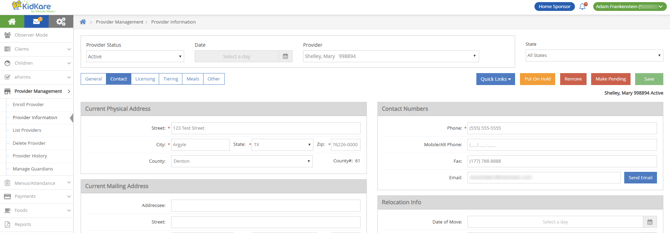
- Click Save. The corrected address is used on the next review a monitor opens for that provider.
Keeping Addresses Current
Address accuracy is your agency's responsibility, and it is a condition of getting reliable results from this feature. Build an address check into the points where you already touch the provider record:
- At enrollment and at annual renewal.
- Whenever a provider tells you they have moved.
- Whenever a monitor reports being prompted at a home they were actually standing in.
Step 2: Turn on Preference R.033
- From the menu to the left, click Administration.
- Click Sponsor Preferences.
- Click the R. Review Settings section to expand it.
- Locate 033. Enable Geofencing Enforcement for Reviews.
- Set the policy to Y.
- If you sponsor providers in more than one state, repeat this for each state you want to enforce. Each state has its own setting.
- Click Save.
Navigate Location Prompts During an Online Review
The first time you open a review after your agency enables this feature, your browser asks whether KidKare can use your location. Click Allow.
IMPORTANT! If you click Block, or if you blocked location for KidKare at some point in the past, you cannot open the review. KidKare cannot ask you again — your browser remembers your answer. You must turn location back on for KidKare in your browser settings yourself. See Turn Location Back On below.
The "Unable to Confirm Location" Prompt
You see this prompt when your device is more than roughly 100 meters (about 330 feet) from the provider's address on file — or when KidKare cannot locate that address at all.
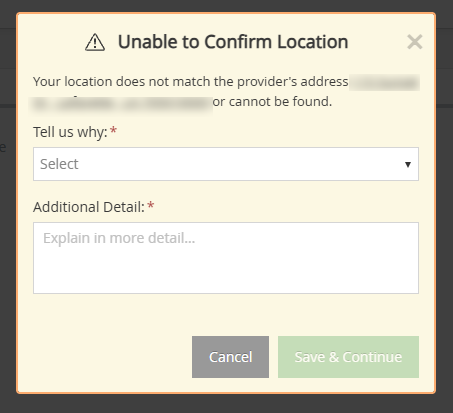
When you encounter this popup:
- Click the Tell us why drop-down menu and select the reason that fits. See the Reasons table, below.
- In the Additional Detail box, type a short explanation.
- Click Save & Continue. The review form then opens and you complete the review as normal. You are not blocked. Your reason and explanation are recorded and appear on a report your sponsor can run.
Reasons & When to Use Them
|
Reason |
Use it when |
|
Poor GPS Signal |
Your device could not get a good fix — indoors, in a basement, in bad weather, or in a rural area with weak service |
|
Inaccurate GPS |
Your device reported a location you know is wrong |
|
Provider Moved / New Address |
The provider is not at the address KidKare has on file. Tell your sponsor so the record can be corrected |
|
Low Battery |
Your device is in a power-saving state that degrades location accuracy |
|
Desk Review |
You are conducting a desk review and are not at the home. This is a legitimate selection |
|
Other |
None of the above. Explain in the detail box |
Note: Save & Continue stays greyed out until you have both selected a reason and typed an explanation. Both are required.
The "Location Required" Prompt
You see this prompt when KidKare could not get a location from your device at all — location is switched off, blocked in your browser, or the request timed out.
You have two options:
- Try Again: Use this after you have turned location on. If your browser is still blocking KidKare, Try Again fails immediately. Fix the browser setting first, and then refresh the page.
- Exit Review: Return to List Reviews.
IMPORTANT! If the location request fails twice, you are returned to List Reviews and nothing is saved. No review is created, no review dates are set, and nothing is recorded anywhere. Get location working, then start the review again.
Turn Location Back On
If you blocked location for KidKare, KidKare cannot re-prompt you. Turn location services back on yourself:
- In your browser, click the icon at the left end of the address bar. Note that the location of this setting may vary between browser types.
- Find Location and set it to Allow.
- Click Try Again in the prompt.
- When your browser prompts you, refresh the page.
If location is still failing, check your device's operating system settings. Location services must be on for the browser as well as for the site.
Re-Opening In-Progress Reviews
If you reopen an in-progress review from a different place, that reopen is checked and recorded too. A review started at the home and finished from the office shows both.
Note: Once a review is completed (i.e. signed by the provider and monitor), opening it again to read or validate it does not trigger a location check.
Leaving a Review Open a Long Time
A location check stays valid for about one hour. If you open a brand-new review, leave it open longer than that, and then save it for the first time, the save is refused and you are told a valid location check is required. Close and reopen the review to get a fresh check, then save.
Note: This does not affect reviews you have already saved.
Review Location Discrepancy Report
The Review Location Discrepancy Report lists the online reviews your monitors opened from somewhere other than the provider's home, together with the reason and explanation each monitor gave.
Use it to answer the question a state auditor asks: *how do you know your monitors were at these homes?* Reviews conducted on-site do not appear on this report — the report is the exception list.
- From the menu to the left, click Reports.
- Click the Reviews category.
- Click Review Location Discrepancy Report.
- Set the From date and the To date. These filter on the review date.
- Set the Provider Status filter, if needed.
- Click Select Providers and choose the providers to include.
- Click Run.
Reading the Report
|
Column |
What it shows |
|
Provider Name |
The provider whose review was opened |
|
Review Date |
The date the review itself started |
|
Reviewed By |
The monitor who opened the review |
|
Location Discrepancy |
The date and time of the specific location check |
|
Reason |
The reason the monitor selected from the drop-down |
|
Comments |
The explanation the monitor typed |
Note: Review Date and Location Discrepancy are different dates on purpose. Review Date is when the review started; Location Discrepancy is when that particular check happened. A monitor who starts a review one day and reopens it the next produces two different Location Discrepancy times against the same Review Date.
Why One Review Can Appear Twice on the Report
The report lists one row per location check, not one row per review. Each time a monitor opens or reopens an in-process review away from the provider's home, that is a separate check and a separate row.
A review opened once from the office and reopened later from a different office shows twice, with two different Location Discrepancy times and potentially two different reasons. This is intended, as it provides the fuller picture.
Working the Report
A useful monthly rhythm:
- Look for repeat providers. The same provider appearing month after month with Provider Moved / New Address or generic GPS reasons usually means the address on file is wrong. Correct it for future reviews.
- Look for repeat monitors. One monitor generating far more off-site checks than their peers is a conversation, not necessarily a problem. Desk Review volume may simply reflect how you have assigned their caseload.
- Read the comments. The explanations are where the useful detail is. A reason code on its own tells you little.
- Note what is missing. Reviews that were never completed do not appear here at all, because nothing is saved when a monitor cannot get past the location step.
When the Report Is Empty
Check these in order:
- Both the From and To dates are set, and the range covers the review date — not the date the check happened.
- Providers are selected, and the Provider Status filter is not excluding them.
- Geofencing enforcement is set to Y for the state those providers are in. If you sponsor across several states, providers in unenforced states are never checked and never appear.
- Your monitors genuinely conducted those reviews on-site. An empty report is a good result.