![KK Icon.png]](https://knowledge.kidkare.com/hs-fs/hubfs/KK%20Icon.png?width=40&height=40&name=KK%20Icon.png)
What is automated labor logging?
The Labor Log feature allows you to turn on automated labor logging for your staff. When you enable automated labor logging:
- Staff is prompted to check in for the day upon login. They may also opt to do this later or mark themselves as ABSENT.
- Once staff checks in, activities assigned to their role will be logged automatically to their labor log, based on their standard work duration and, in the case of CACFP Labor, meal times.
- Center staff may access their labor log and make changes to the default activities logged for their work day to ensure accuracy.
Note: You must have appropriate permissions to enable and configure labor logging.
Enter Labor Details for Users
Before you enable automated labor logging, enter your staff's normal working hours in their User profile. Be sure to also add their hourly wage for the log to automatically calculate CACFP Labor Costs.
You must have View/Modify Center Staff permissions and View/Manage Labor Detail permissions to update this information.
- From the menu to the left, click Administration and select User Permissions.
- Click the pencil icon next to the user to edit.
- In the Labor Details section, complete the following:
- Normal Start Time
- Normal End Time
- Hourly Wage ($)
- Click Save.
Enable Automated Labor Tracking
- From the menu to the left, click Administration and select User Permissions.
- Click the Labor Log Configuration tab.
- Set the Enable automated labor tracking? toggle to Yes.
What Happens Next?
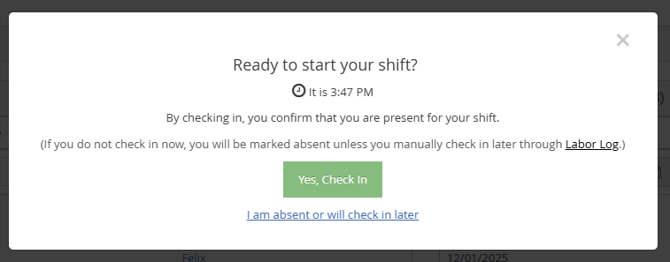
Once you've turned on automated labor tracking, your staff will be prompted to check-in for the day or mark themselves absent. The current time on the device they are using will display in the message that appears.
- Yes, Check in: This will check the user in for the day, using their check-in time as their "start" for the day. Any activities assigned to this user will be added to their labor log for the day.
- Check-in Later: This will clear the prompt to check in for the day and prevent it from showing again until the next day. Users who choose this option will be marked ABSENT by default. However, they may access their log and update it at any time during the work day.
How does KidKare calculate activity durations?
The labor log consists of two activity types: CACFP Labor and Administrative Labor. Since CACFP labor must be associated to a meal service, there will always be at least one meal assigned to that task.
- CACFP Labor is tallied first. Since CACFP Labor is reimbursable, these hours are calculated first. KidKare uses meal times, the employee's check-in time, and the employee's standard work hours to determine whether the employee was present for meal service. Let's look at an example:
- Clara's normal start time is 7AM and her normal end time is 5PM, which makes her normal working duration 10 hours.
- Clara is assigned to meal service for Breakfast from 8AM-9AM, Lunch from 12PM-1PM, and PM Snack 3PM-3:30PM.
- She checks in to work at 7:30AM. Since she usually works 10 hours, KidKare assumes she will be checked in until 5:30PM (17:30 - 7:30 = 10).
- Because we assume she is checked in between 7:30AM and 5:30PM, KidKare logs the following activities for Clara:
- Breakfast Meal Service 8AM-9PM
- Lunch Meal Service 12PM-1PM
- PM Snack Meal Service 3PM-3:30PM
- Clara has a total of 2.5 hours of CACFP Labor logged for the day.
- Administrative Labor is calculated second. Because we are tacking labor automatically, KidKare uses the following equation to determine administrative labor duration: Total Work Hours - Total CACFP Labor Hours. Following our example:
- In addition to her CACFP tasks, Clara also is responsible for inputting new enrollment forms. Her role is assigned to the Enrollment Data Entry activity.
- Clara's total work duration is typically 10 hours.
- 10 hours - 2.5 hours = 7.5 hours
- 7.5 hours of administrative labor is added to Clara's log for the day.
How are overlapping CACFP Labor Tasks counted?
In some cases, a user may have multiple tasks assigned to the same meal. For example, Kitchen Staff may be assigned to both meal preparation and meal cleanup for Lunch.
Automated logging assumes that these tasks are both completed within the Lunch meal window. So, even though there are two lines—one for Meal Preparation and one for Meal Cleanup—only one hour is counted.
Staff may edit their daily logs to reflect the correct start and end times for a specific activity to ensure each are counted correctly.
How does my staff ensure these logs are accurate?
We recommend that center staff review their logs daily to ensure that the information captured is correct. Users may edit logs for their current day regardless of permission settings. To edit beyond that, however, users must have the Edit Past Labor Logs permission set to Yes.
What happens if there are missing meal times?
In the event that critical time information is not present, users will be directed to their log upon check-in to manually input times for each of their assigned activities.