![KK Icon.png]](https://knowledge.kidkare.com/hs-fs/hubfs/KK%20Icon.png?width=40&height=40&name=KK%20Icon.png)
Log Labor Manually
Once enabled, center staff can access their own labor log and record hours spent on CACFP Labor and Administrative Labor.
-
From the menu to the left, click Expenses.
- Click Labor Logs.
- To log time:
- Click Edit or Log Time.
- Click the Activity drop-down menu and select the activity you are logging. The available options depend on the activities your administrator assigned to your user role. If this is an Administrative Labor activity, go to Step 3d.
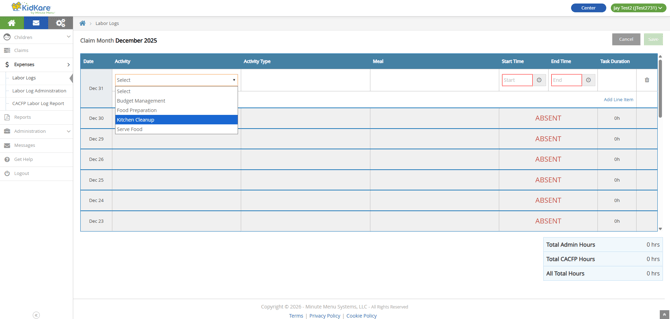
- If this is a CACFP Labor activity, click the Meal drop-down menu and select the meal to which this activity applies. The available options depend on the meals your administrator assigned to the task.
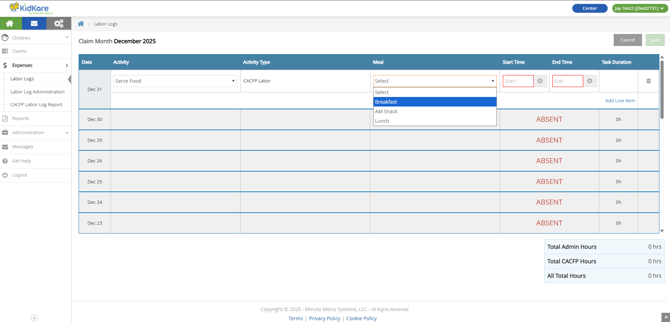
- Click the Start Time and End Time boxes and enter the start and end time for this activity. The total duration is calculated automatically and displays in the Task Duration column.
- Click Add Line Item to add additional activity logs.
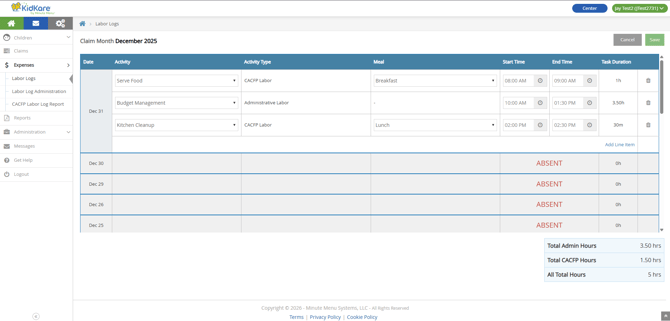
- Click Save.
- To edit logged time:
- Click Edit or Log Time.
- If your administrator allows you to edit labor logs for prior days, click the day to edit. Otherwise, you may only edit the current day's logged labor.
- Update the Activity and other details, as needed.
- To remove an activity, click
 .
. - Click Save.
Automated Labor Logging
Your sponsor or center administrator may have enabled automated labor logging. If this is the case, you will be prompted to check-in daily to automatically log labor based on the following:
-
The tasks you are assigned.
-
Your standard work schedule, as recorded in User Details.
- Meal times for any impacted meals.
To learn more about how automated labor logging works, as well as how to configure it, head on over to the Enable Automated Labor Logging article. Otherwise, read on to learn about how this type of logging works in your day-to-day.
When automated labor logging is enabled:
-
When you first log in to KidKare, you are prompted to check-in for the day. The check-in prompt displays the current time on your device.
From here, you can choose:- Yes, Check in: This will check the you in for the day, using your check-in time as their "start" for the day. Any activities assigned to you will be added to your labor log for the day.
- Check-in Later: This will clear the prompt to check in for the day and prevent it from showing again until the next day. Choosing this option will mark you ABSENT by default. However, you may access your log and manually update it at any time during the work day.
- Access your log each day and review the items that were automatically logged for you. You can make adjustments, as needed, to accurately reflect the activities you completed during your work day. If you have permissions to do so, you may also be able to edit previous days in the month.
Approve Your Log Monthly
Each month, you must approve the time you logged. Approving your log acts as a signature certifying that the information entered is accurate. Once approved, you will be unable to make any changes to your log. If changes are needed, your center admin will be able to make adjustments for you.
The first workday of each month, you will be prompted to approve the prior month's labor log upon log in.