---
title: Send Renewal Invitations
description: From the menu to the left, click eForms. Click Send Invitations. Set filters for the participants to include. Click the Participants Expiring Within drop-down menu and select a date range (30 Days, 6
---
[Skip to content](https://knowledge.kidkare.com/independent-center/send-new-renewal-invitations#main-content)
English
Show submenu for translations
![KK Icon.png\]](https://knowledge.kidkare.com/hs-fs/hubfs/KK%20Icon.png?width=40&height=40&name=KK%20Icon.png)
- [Customer Portal](https://support.kidkare.com/_hcms/mem/login)
- [Access KidKare](https://app.kidkare.com/)
- [Support & Releases](https://knowledge.kidkare.com/support-releases)
- [Contact KidKare Support](https://knowledge.kidkare.com/support-releases/contact-our-support-team)
Open main navigation
Close main navigation
- [Customer Portal](https://support.kidkare.com/_hcms/mem/login)
- [Access KidKare](https://app.kidkare.com/)
- [Support & Releases](https://knowledge.kidkare.com/support-releases)
- [Contact KidKare Support](https://knowledge.kidkare.com/support-releases/contact-our-support-team)
- English
Show submenu for translations
- Go to kidkare.com
Go to kidkare.com
Hello. How can we help you?
- There are no suggestions because the search field is empty.
1. [Independent Centers](https://knowledge.kidkare.com/independent-center?hsLang=en)
2. [eForms](https://knowledge.kidkare.com/independent-center/eforms?hsLang=en)
# Send Renewal Invitations
1. From the menu to the left, click **eForms**.
2. Click **Send Invitations**.
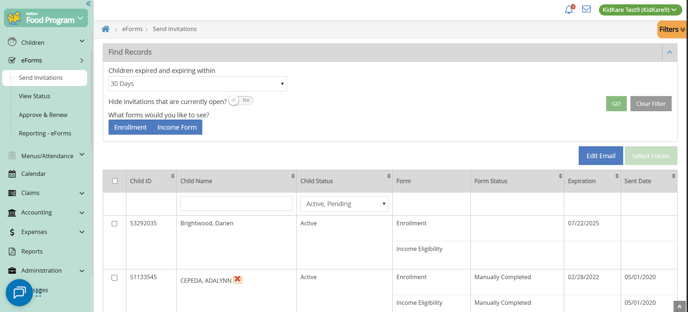
3. Set filters for the participants to include.
- Click the **Participants Expiring Within** drop-down menu and select a date range (**30 Days**, **60 Days**, **90 Days**, or **Custom Date**).
- If you select **Custom Date**, enter a custom date range in the boxes that display.
According to your display settings, this option may be called something else, such as Children Expiring Within. For more information, see **[Update Center Settings](https://knowledge.kidkare.com/independent-center/set-display-settings?hsLang=en)**.
- Click  next to **Hide Invitations That Are Currently Open** to hide open invitations. This is set to **No** by default.
- In the **What Forms Would You Like to See** section, click **Enrollment**, **Income Form**, or both.
- Click **Go**.
4. Check the **box** next to the participants to which to send forms. You can also check the **box at the top of the table** to select all displayed participants.
- Only the records on the page you are viewing are selected. You can click the **Display Records** drop-down menu to display additional records (**10**, **25**, **50**, or **100**).
5. Send the form(s).
- To send both enrollment forms and income eligibility forms, click **Send All**.
- To send a specific form, click  next to Send All and select the form to send.
eForms are sent to the parent/guardian in the language set on their contact record in the **View Child Contacts** tab.
The video below gives you some insight into what the guardians see when they receive the invitation and fill out the enrollment forms.
- [Home Page & Settings](https://knowledge.kidkare.com/independent-center/home-page-settings?hsLang=en)
- [Children](https://knowledge.kidkare.com/independent-center/children?hsLang=en)
- [eForms](https://knowledge.kidkare.com/independent-center/eforms?hsLang=en)
- [Menus & Attendance](https://knowledge.kidkare.com/independent-center/menus-attendance?hsLang=en)
- [Calendar](https://knowledge.kidkare.com/independent-center/calendar?hsLang=en)
- [Claims](https://knowledge.kidkare.com/independent-center/claims?hsLang=en)
- [Parachute](https://knowledge.kidkare.com/independent-center/parachute?hsLang=en)
- [Expenses](https://knowledge.kidkare.com/independent-center/expenses?hsLang=en)
- [Reports](https://knowledge.kidkare.com/independent-center/reports?hsLang=en)
- [Administration](https://knowledge.kidkare.com/independent-center/administration?hsLang=en)
- [Messages](https://knowledge.kidkare.com/independent-center/messages?hsLang=en)
- [Get Help/Support](https://knowledge.kidkare.com/independent-center/get-help-support?hsLang=en)
- [KidKare Guardian Portal](https://knowledge.kidkare.com/independent-center/kidkare-guardian-portal?hsLang=en)
- [KidKare Academy](https://knowledge.kidkare.com/independent-center/kidkare-academy?hsLang=en)
# KidKare
Support Hours M-F 9am-5pm CST
Copyright © 2026, KidKare