
Manual Attendance Tracking
To access the Attendance page, click Attendance from the left-hand menu.
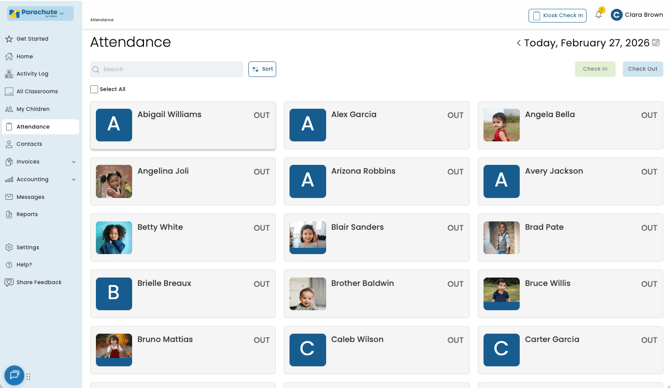
On this page, you will see a list of all active children. You can quickly find and organize children using the Search and Sort tools:
-
Search: Use the search field to locate a child by first name, last name, or both.
-
Sort: Organize the list alphabetically by first name, in reverse alphabetical order, or by check-in and check-out status.
Note: If children are checked in through either the Kiosk or Parent Check In method the status and check in/out times will still be reflected on this page.
Checking Children In and Out
Checking one or multiple children in at one time is quick and simple:
- Select one or more children that you wish to check in.
- Click the Check In button at the upper right hand corner of your screen.
- Enter in the correct check in time, by default the current time will be auto-populated
- Click "Confirm Check In."
Once confirmed:
- A confirmation message will appear.
- The selected children's name cards will turn green to indicate they are now checked in.
- The recorded check-in time and "In" status will be displayed on the child's name card.
Checking Children Out
Checking out a child follows the same easy process:
- Select one or more children who are currently checked in.
- Click the Check Out button at the upper right hand corner of your screen.
- Enter in the correct check out time, by default the current time will be auto-populated.
- Click “Confirm Check Out”.
After confirming:
- A confirmation message will appear.
- The selected children's name card will turn gray to indicate they are checked out.
- The check-out time and "Out" status will be displayed.
Edit Check In and Check Out Times
To edit a child's check-in or check-out time:
- Select Edit Time on the child’s name card.
- A modal will appear, displaying all entered check-in and check-out times for the day, regardless of whether the child was checked in manually or via Kiosk/Parent Check in
- Make the necessary changes.
- Click the Save button to confirm the update.
After confirming:
- A confirmation message will appear.
- The updated times will be reflected on the child's name card.
- All changes are recorded in the Detailed Attendance Report, ensuring a log of modifications for record keeping.