![logoiconparachute.png]](https://knowledge.kidkare.com/hs-fs/hubfs/logoiconparachute.png?height=40&name=logoiconparachute.png)
The Invoices page is where you create and manage invoices sent to Parents/Guardians and Agencies for tuition and other childcare-related fees. All invoices — regardless of status (such as Paid, Unpaid, or Pending) — are available in this section. Use this page to track payments and monitor which balances are still outstanding.
If you are looking for how to add additional income outside of invoices, see the Manage Other Income section.
View Invoices
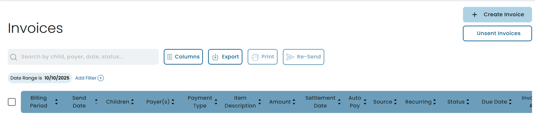
To view all of your invoices, navigate Invoice section. From here you can view all sent invoices, their status, and other important invoice data
-
From the menu to the left, click Invoices
-
Select Invoices.
-
From this page, you can use the Search bar and Filters to quickly locate invoices.
- Use the Search box to find invoices by entering:
- Child first name, last name, or full name
- Payer first name, last name, or full name
- Amount
- Payment types
- Or other invoice-related details
- NOTE: the search results will render based on the current filters selected as well.
- Use Filters to narrow down invoices based on specific criteria:
- Date Range: Range of dates options to filter the send date of a particular invoice.
-
Child: Filter invoices by a specific child.
-
Payer: Filter invoices by a specific payer.
- Autopay: Filter based on whether Autopay is On, Limit, or Off.
- Source:
-
Payer: Payment was user-initiated.
-
Recurring: Invoice is part of a recurring series.
-
Manual: Invoice was created as a single invoice.
-
Scheduled: Invoice was scheduled and sent automatically.
-
- Amount: Filter by total invoice amount.
- Status:
-
Paid: Invoice balance has been paid in full.
-
Partially Paid: A portion of the balance has been paid.
-
Pending: A credit card or ACH payment has been initiated but not yet settled.
-
Unpaid: No payment has been applied.
-
Declined: A payment attempt failed. Contact the payer directly.
-
Canceled: Invoice has been voided; no payment is expected.
-
Pending Refund: A refund has been initiated but not yet settled.
-
Partial Refund: Part of a payment has been refunded.
-
Refunded: The full invoice amount has been refunded.
-
- Settlement Date: The date the invoice was marked Paid.
- Due Date: The date payment is due.
- Billing Period: Filter invoices that include a billing period within the selected range.
- Payment Type: The payment method used to pay an invoice.
- Item Description: View invoices that include specific item descriptions
- Use the Search box to find invoices by entering:
-
-
Export: Export data to an Excel or CSV File. Only the data currently being populated based on the selected filters and columns will be exported.
-
Unsent Invoices
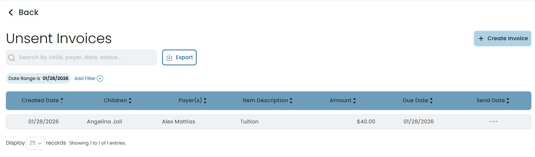
In this section you can find all invoices that are scheduled to be sent in the future as well as saved drafts of invoices that have not been yet been sent.
Note: If an invoice has already been scheduled to be sent on a specific date you do not need to take any further action in order to send it unless you would like to update the scheduled date
-
From the Invoice Screen, click Unsent Invoices in the top right corner.
-
Use the Search box to start entering in any data found on the invoice(s) you're looking for to automatically filter the search results.
-
Use the Filters to narrow down the list of invoices based on certain criteria.
-
Item Description: View invoices that include specific item descriptions.
-
Amount: Total Invoice amount.
-
Due Date: Date the Invoice is due toe be paid by the payer.
-
Created Date: The date the invoice was originally created.
-
-
Use the Export button to Export data to an Excel or CSV File.
Edit Unsent Invoices
All invoices in the Unsent Invoices section can be updated.
-
From the Invoices screen, click Unsent Invoices in the top right corner.
-
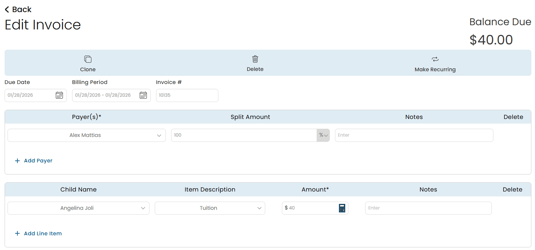
Click on the specific invoice you would like to view and edit. The invoice page loads.
-
At the top of the screen, there are options to Clone, Delete, and Make Recurring. If you are not needing to use any of these options, proceed to Step. 4.

-
Clone: Clicking this will allow you to create a new invoice with all of the same data automatically populated
-
Upon clicking the Clone you will be directed to a new Invoice Create page with all of the details of the original invoice auto-filled except for Due Date and Billing Period.
-
All fields on this page can be edited.
-
-
Delete: Click this if you no longer wish to send this invoice. This action cannot be undone.
-
Make Recurring: Clicking this will allow you to create a new recurring invoice with all of the same data automatically populated.
-
Upon clicking the Make Recurring button you will be directed to the Make Recurring Invoice Page, with all of the details of the original invoice auto-filled except for Due Date and Billing Period.
-
To create a new recurring invoice you will have to enter in the First Due Date and Billing Frequency. You can view all Recurring Invoices in the Recurring Invoice section.
-
-
-
Edit the invoice as needed.
-
Select the date the invoice will be sent.
-
Choose Yes, Send Now to send the invoice now.
-
To select a future date, click the
 next to Yes, Send Now to select the date the invoice will be sent.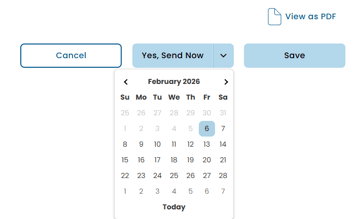
-
-
Once you are finished updating the invoice click Save button.